The practical answer
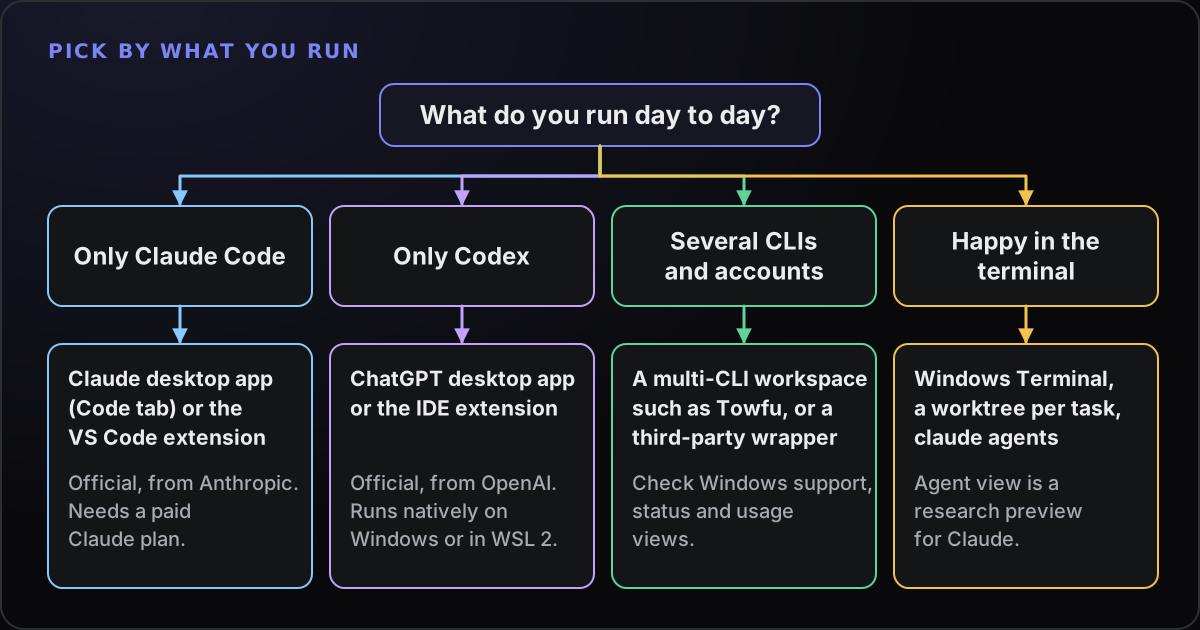
If you only use Claude Code, start with Anthropic’s own desktop app or its VS Code extension. If you only use Codex, use OpenAI’s app. If you run several CLIs and accounts and want status and usage in one window, look at a multi-CLI workspace such as Towfu. If you are happy in a terminal, a plain terminal with worktrees is still a good answer.
Why people look for a Claude Code GUI
Claude Code is a command-line tool, and for one task in one terminal that is hard to beat. The trouble starts when you do more than one thing at once. People who go looking for a GUI usually describe one of these problems:
- Tabs everywhere. Four terminals, four projects, and no idea which one is waiting for an answer.
- Lost sessions. A closed window, a restart or a crash, and finding the conversation again is a chore.
- No status. Is it working, stuck or finished? You find out by looking at each window.
- Reviewing changes. Reading a diff in a terminal is possible, but not always pleasant.
- Limits you cannot see. You learn you are out of quota when work stops.
Those are different problems, and different tools solve different ones. It helps to say which of them hurts most before you compare anything.
What “GUI” can mean for Claude Code
There are five broad families. They are not mutually exclusive, and several use the same underlying CLI.
- Anthropic’s desktop app. The Claude desktop app has a Code tab with sessions, a diff view and an integrated terminal. It includes Claude Code, so you do not need to install Node.js or the CLI to use that tab.
- IDE extensions. Claude Code has a VS Code extension, a graphical interface inside the editor with inline diffs, plan review and multiple conversations in tabs. Anthropic also documents other IDE integrations.
- The terminal, with help. Windows Terminal plus Git worktrees. Claude Code also has an agent view (
claude agents) that lists background sessions by state. Anthropic marks it as a research preview. - Another vendor’s app. If you also use Codex, OpenAI documents a ChatGPT desktop app for Windows that runs Codex, besides its CLI and IDE extension.
- Multi-CLI workspaces and wrappers. Third-party tools that sit around the CLIs you install. AlternativeTo lists several for Claude Code, such as AionUi and Clayrune, with differing licences and platforms. We have not tested them, so check each one’s current Windows support and what it actually does.
Criteria that matter on Windows
A feature list is less useful than a short list of questions. These are the ones that tend to decide it:
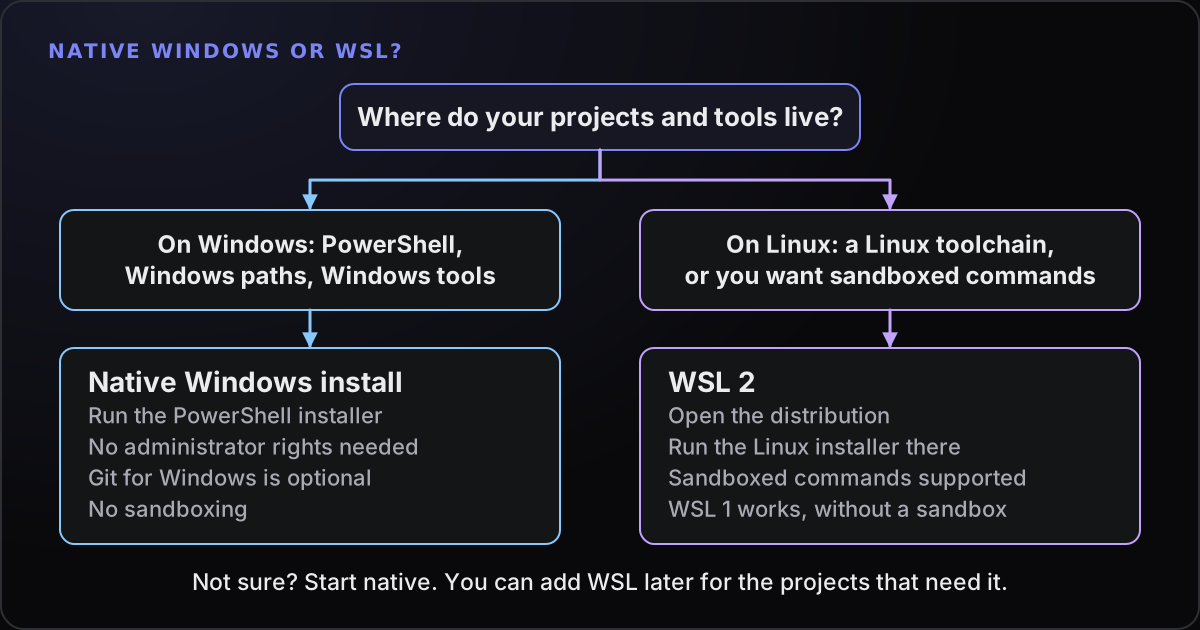
- Does it run on Windows natively, or does it need WSL?
- Can you run several sessions at once, and can you see which needs you?
- Does it run the CLI you installed, or its own copy? That decides whether your existing settings and sign-in carry over.
- Does it cover other vendors’ agents, or only one?
- Where do your files and sessions live, and what leaves your PC?
- What does it cost, on top of your provider plan?
Here is how the options line up on those, using each vendor’s own documentation where it exists. A blank or hedged cell means we could not confirm it, not that the feature is absent.
| Option | Windows | Several sessions | Whose agents | Cost beyond your plan |
|---|---|---|---|---|
| Claude desktop app (Code tab) | x64 and ARM64 installers | Parallel sessions, optionally each in its own worktree | Claude Code only; bundles Claude Code | Needs a paid Claude plan |
| Claude Code in VS Code | VS Code 1.94 or later | Multiple conversations in tabs or windows | Claude Code only | Needs a paid Claude plan or Console account |
Terminal and claude agents | Native or WSL | Background sessions grouped by state (research preview) | Claude Code only | None; uses your Claude plan |
| ChatGPT desktop app (Codex) | Native, PowerShell sandbox, or WSL 2 | Parallel chats and worktrees | Codex only | OpenAI plan or API key, check OpenAI |
| Third-party wrappers | Varies; check each | Usually | Varies | Several are free or open source, check each |
| Towfu | Windows 11 | Many sessions; Needs you, Working, Done | Claude Code and Codex with full support; Gemini and Grok CLIs; any other CLI in a terminal | Paid monthly subscription |
Fair notes on each option
Anthropic’s desktop app
For a Claude-only workflow, this is the obvious first thing to try, and it comes from the same company as the tool. The Code tab offers parallel sessions, optionally each in its own Git worktree, a visual diff review, an app preview pane, pull request monitoring, scheduled tasks and cloud sessions that carry on if you close the app. You can choose Local, Cloud, SSH or WSL for a session. It is Claude-only by design, and it bundles Claude Code rather than running the copy you installed, so check how your CLI settings carry over.
The VS Code extension
If your day already happens in VS Code, the extension puts plan review, inline diffs and file mentions next to your code. It is one conversation per tab, which suits a focused task more than a dashboard of ten.
The terminal and agent view
Do not underrate this. Agent view (claude agents) shows background sessions, what needs your input and what is done, and they keep running if you close the terminal. Two caveats from Anthropic’s own documentation: it is a research preview whose interface may change, and background sessions run on your machine, so a shutdown or restart stops them.
OpenAI’s desktop app
If you use Codex, OpenAI documents the ChatGPT desktop app on Windows as supporting parallel chats, worktrees, scheduled tasks, Git functionality, a built-in browser, plugins and skills. It can run natively in PowerShell with a Windows sandbox, so WSL is not required, and Windows 11 is the recommended version. It covers Codex only.
Third-party wrappers
These come and go quickly, which is why we are not ranking them. The questions to ask are the criteria above, plus a few of their own: is it maintained, does it run the real CLI, and where does your data go?
Multi-CLI workspaces, including Towfu
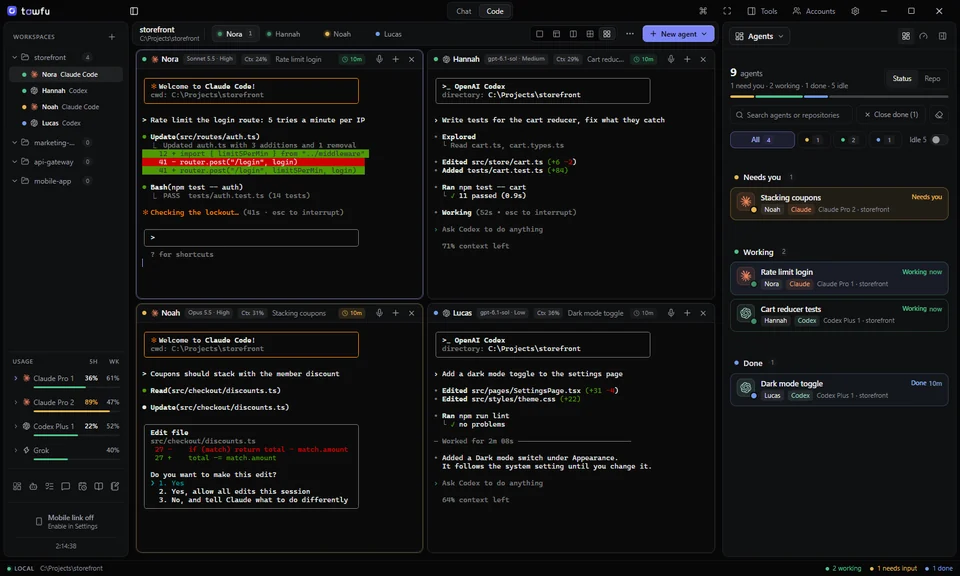
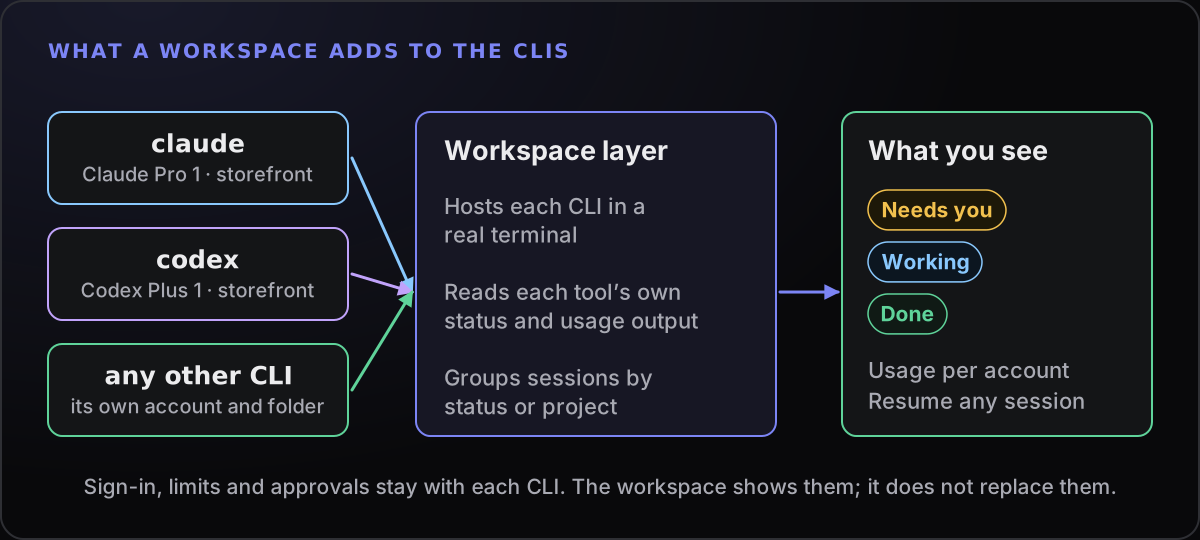
This is the group for people who run Claude Code and Codex, maybe Gemini CLI as well, and often under more than one account. The value is the view across all of them: which session needs you, which account is nearly out of quota, and how to get back to a conversation. What you give up is a vendor’s exclusive features, such as cloud sessions, which are not part of a wrapper around the CLI.
When the plain terminal is still best
A GUI is not automatically an upgrade. Stay in a terminal if:
- You run one agent at a time and know where it is.
- You work over SSH, or mostly inside WSL or a container, where a Windows desktop app adds little.
- You want every flag and environment variable exactly as documented, with nothing in between.
- You are scripting runs with
claude -p, which is outside the point of a GUI.
It is also fine to mix, for example a desktop app for reviewing diffs and a terminal for everything else. And whichever you choose, the habits that keep several agents sane are tool-independent: a worktree per task and a review checklist. If installing is the stumbling block, start with installing Claude Code on Windows.
A quick way to choose
- Write down the one problem that annoys you most from the list at the top.
- Try the official option for your vendor first. It adds no cost beyond the plan you already pay for, and it shows you what you actually miss.
- Add a workspace only when the gap is across tools or accounts: seeing several vendors’ sessions together, or watching usage on more than one account.
- Test with a real, small task, then close and reopen the app and see what resumes.
A one-hour trial is enough to learn most of what you need:
- Open the same small repository in the tool, with a task you can verify, such as fixing one failing test.
- Start two sessions at once and work out, without looking at each in turn, which one needs you.
- Close the app mid-task, reopen it, and note exactly what resumes and what does not.
- Find the account and the working folder each session is using, and check where a diff appears.
- Look for the places your prompts and project files go, and read the vendor’s privacy statement for them.
For a third-party tool, also check whether it is still being updated, whether it runs the real CLI or its own re-implementation, and whether it asks for your credentials. A tool that wants you to paste a provider password or API key deserves more scrutiny than one that sends you through the official sign-in.
Whatever you pick, keep it honest: a GUI that makes agents easier to run also makes it easier to let one run unwatched. Decide in advance what you will review.
Where Towfu fits
Towfu is one option in the multi-CLI group: a local Windows 11 workspace around the official CLIs you install, with your own provider accounts. Claude Code and Codex get full support, including account usage, model, context and history; Gemini CLI and Grok CLI get their own account profiles; any other CLI runs in a real terminal. It shows which agent needs you, and usage per account. It does not include model access, and it does not replace Anthropic’s or OpenAI’s own apps; if you only use one vendor, theirs may be all you need.