The practical answer
On Windows, install natively from PowerShell with irm https://claude.ai/install.ps1 | iex, then open a new terminal and run claude --version. Git for Windows is optional. If claude is not recognized, add %USERPROFILE%\.local\bin to your User PATH. Use WSL 2 when you need a Linux toolchain or sandboxed commands.
Native Windows or WSL: how to choose
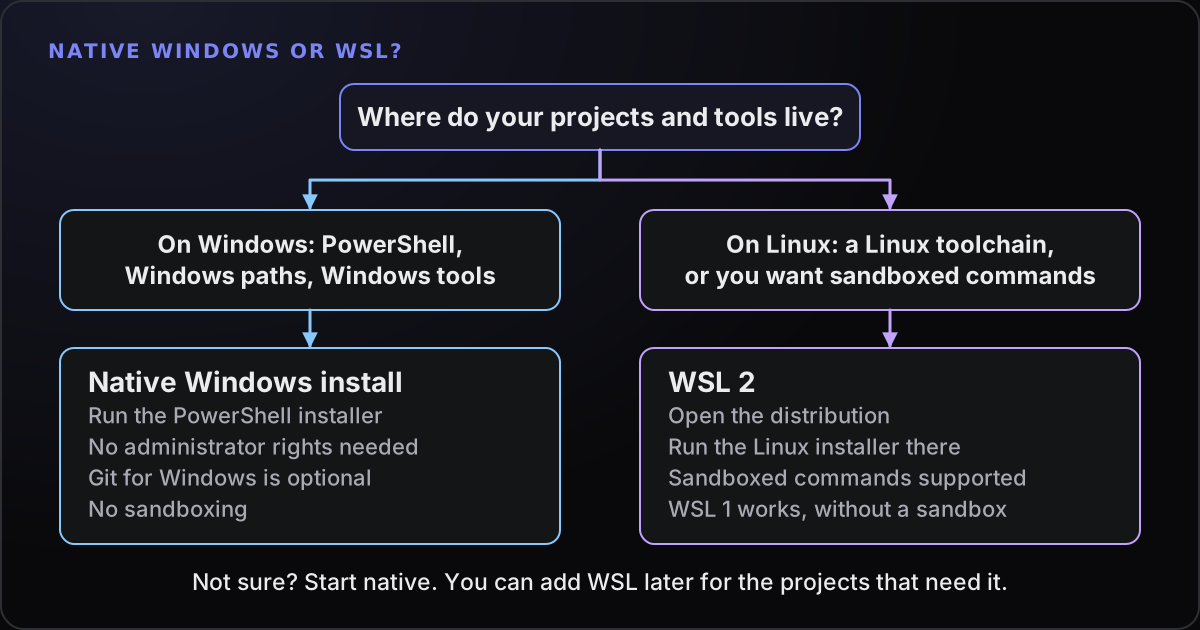
Claude Code runs natively on Windows and inside WSL. Anthropic’s setup documentation lists Windows 10 version 1809 or later (or Windows Server 2019 or later) as supported, on x64 or ARM64, with 4 GB of RAM or more. Pick by where your projects and tools live:
| Option | Sandboxing | Choose it when |
|---|---|---|
| Native Windows | Not supported | Your projects and tools are Windows-native |
| WSL 2 | Supported | You need a Linux toolchain, or sandboxed command execution |
| WSL 1 | Not supported | WSL 2 is not available to you |
The flowchart above shows the same decision. If you are not sure, start native. The rest of this guide covers the native path first and WSL near the end. (Towfu, mentioned below, has its own requirement of Windows 11; that is separate from what Claude Code itself supports.)
Install Claude Code natively
Anthropic recommends the native installer. Open PowerShell (the prompt starts with PS) and run:
irm https://claude.ai/install.ps1 | iexYou do not need to run as Administrator. The command shows no progress while it downloads, so wait for the prompt to return. Then open a new terminal window, because the one you installed from keeps its old PATH, and check:
claude --version
claude doctor
claude --version prints a version number. claude doctor prints read-only diagnostics about the installation and your settings without starting a session. Then start in a project folder:
cd C:\Projects\my-app
claude
The first run opens a browser window to sign in. You need a Pro, Max, Team, Enterprise or Console account; the free claude.ai plan does not include Claude Code.
Alternatives, if the script route is blocked on your machine:
- Command Prompt:
curl -fsSL https://claude.ai/install.cmd -o install.cmd && install.cmd && del install.cmd. Use this in CMD only. - WinGet:
winget install Anthropic.ClaudeCode. WinGet installs do not update themselves; runwinget upgrade Anthropic.ClaudeCodefrom time to time. - npm:
npm install -g @anthropic-ai/claude-code, which needs Node.js 22 or later. It installs the same native binary.
Native installations update themselves in the background. You can run claude update to apply an update immediately.
Update channel, pinning and removal
By default you follow the latest channel and get new features as soon as they ship. If you would rather run something a little older and steadier, Anthropic documents a stable channel, typically about a week behind, which skips releases with major regressions. Set it in settings.json:
{
  "autoUpdatesChannel": "stable"
}
A newly launched model can need a newer Claude Code than the stable channel serves, so move back to latest if a model you want is missing. To stop background updates altogether, set DISABLE_AUTOUPDATER to "1" in the same env block; claude update still works manually.
To remove a native install, delete the program and its version folder. This leaves your settings and history alone:
Remove-Item -Path "$env:USERPROFILE\.local\bin\claude.exe" -Force
Remove-Item -Path "$env:USERPROFILE\.local\share\claude" -Recurse -Force
Settings, history and sign-in live in %USERPROFILE%\.claude, and Anthropic warns that deleting it removes your settings, allowed tools, MCP server configuration and session history. The desktop app and the editor extensions write there too, so leave it unless you really want a clean slate.
Git for Windows, Git Bash and CLAUDE_CODE_GIT_BASH_PATH
Older guides, and some error messages you will find online, say Claude Code requires Git Bash on Windows. That has changed. Anthropic’s documentation now says Git for Windows is optional on native Windows. Without it, Claude Code runs shell commands through its PowerShell tool. With it, Claude Code uses Git Bash for its Bash tool, and the PowerShell tool is available alongside it.
So the practical advice is: install Git for Windows if you want the Bash tool (you probably want Git anyway for your projects), and know that Claude Code works without it.
If Git for Windows is installed but Claude Code cannot find bash.exe, tell it where it is. Anthropic’s documented place for this is the env block of your settings.json, which for your user account is %USERPROFILE%\.claude\settings.json:
{
  "env": {
    "CLAUDE_CODE_GIT_BASH_PATH": "C:\\Program Files\\Git\\bin\\bash.exe"
  }
}
Note the doubled backslashes: this is JSON. You can also set it as an environment variable for your account:
[Environment]::SetEnvironmentVariable('CLAUDE_CODE_GIT_BASH_PATH', 'C:\Program Files\Git\bin\bash.exe', 'User')Open a new terminal afterwards. If the path does not exist, or the file is not named bash.exe, sh.exe, bash or sh, Claude Code ignores the variable and auto-detects Git Bash as if it were unset; run claude --debug to see the warning. Before version 2.1.219 it exited at startup in that case, so if you see an older error about the path, update first.
If neither Git for Windows nor PowerShell can be found you will see “Claude Code on Windows requires either Git for Windows (for bash) or PowerShell”. Install Git for Windows, or check that PowerShell is available, and start a new terminal.
Fix “claude is not recognized” (PATH)
This is the most common failure. PowerShell says claude : The term 'claude' is not recognized as the name of a cmdlet; Command Prompt says 'claude' is not recognized as an internal or external command. The installer put claude.exe in %USERPROFILE%\.local\bin, and that folder is not on your PATH. The installer reports this under “Setup notes” but does not change your PATH itself.
First open a new terminal and try again; a window that was already open keeps its old PATH. If you are working in a terminal inside an editor, quit and reopen the editor, because it takes its PATH from the editor. If it still fails, check the file and the PATH in PowerShell:
Test-Path "$env:USERPROFILE\.local\bin\claude.exe"
$env:PATH -split ';' | Select-String '\.local\\bin'
If the first line prints True and the second prints nothing, the program is there and its folder is missing from PATH. Add the folder to your User PATH, then open a new terminal:
$currentPath = [Environment]::GetEnvironmentVariable('PATH', 'User')
[Environment]::SetEnvironmentVariable('PATH', "$currentPath;$env:USERPROFILE\.local\bin", 'User')
claude --version
If Test-Path prints False, there is no native install in that location: run the installer again. If claude stopped working right after an update, the .local\bin folder may hold a backup named claude.exe.old. followed by a number; Anthropic’s troubleshooting guide has a PowerShell one-liner to rename the newest one back, or you can reinstall.
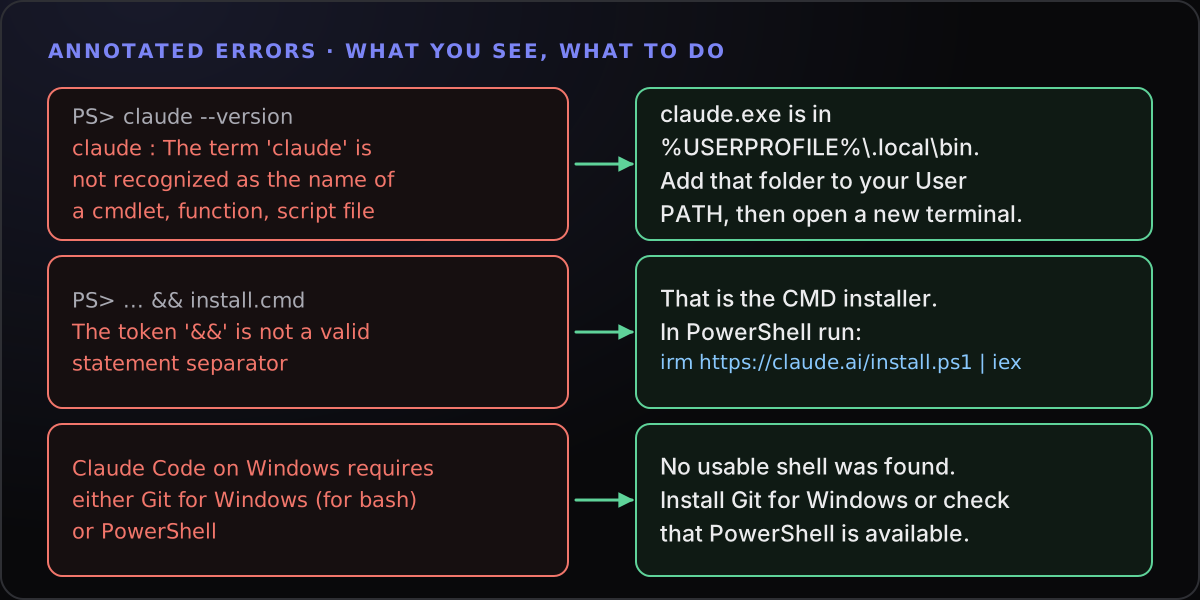
Other errors and PowerShell gotchas
Most of the remaining Windows trouble is the wrong command for the wrong shell, which is easy to do because the install commands differ.
| You see | What it means | Fix |
|---|---|---|
The token '&&' is not a valid statement separator | You are in PowerShell but ran the CMD installer | Run irm https://claude.ai/install.ps1 | iex |
'irm' is not recognized | You are in CMD, not PowerShell | Open PowerShell from the Start menu and run the PowerShell command |
A parameter cannot be found that matches parameter name 'fsSL' | You ran the macOS and Linux curl command in PowerShell, where curl is an alias | Use the PowerShell installer |
| The command prints script text and nothing installs | You ran only the download half | Run the complete command, including | iex |
running scripts is disabled on this system | PowerShell’s execution policy is blocking an npm launcher script (npm.ps1 or claude.ps1) | Use the native installer, call npm.cmd or claude.cmd, or read about Set-ExecutionPolicy -Scope CurrentUser |
The process cannot access the file ... because it is being used by another process | A previous install attempt, or antivirus, has the download folder locked | Close other installers, then delete %USERPROFILE%\.claude\downloads and run the installer again |
| TLS or certificate errors, or a 403 | A proxy, a corporate certificate or an old TLS default is in the way | See Anthropic’s troubleshooting page for your exact message |
Two habits help. Read the first line of the error: it usually tells you which shell you are in. And check claude doctor after an install that “worked” but behaves oddly, since it reports install health and settings problems.
If installing is not your problem but you lose track of several terminals once it works, see the comparison of Claude Code GUI options for Windows.
When to use WSL instead
WSL 2 is the better home for Claude Code when you work in a Linux toolchain, or when you want its sandboxing, which Anthropic lists as supported on WSL 2 and not on native Windows. WSL 1 is supported but without sandboxing, and Anthropic’s troubleshooting guide lists an Exec format error for WSL 1, so prefer WSL 2.
The install is the Linux one, run inside the WSL terminal, not from PowerShell or CMD:
curl -fsSL https://claude.ai/install.sh | bashThen launch claude inside WSL as well. A few WSL-specific notes:
- Sign-in. If your browser shows a login code instead of returning to the terminal, paste the code at the prompt. That is common in WSL 2.
- Keep projects on one side. Run tools where the project lives, and avoid mixing Windows and Linux copies of the same repository.
- It is a separate install. A native Windows install and a WSL install usually do not share configuration, so expect to sign in separately in each.
Anthropic’s desktop app can also run a session inside a WSL 2 distribution if you prefer a graphical front end.
Where Towfu fits
Towfu does not install or replace Claude Code. It is a Windows 11 workspace that runs the CLI you installed yourself, so everything above applies to it too. Once claude --version works in PowerShell, Towfu can host it alongside your other agents. See the installation help for Towfu’s own requirements.