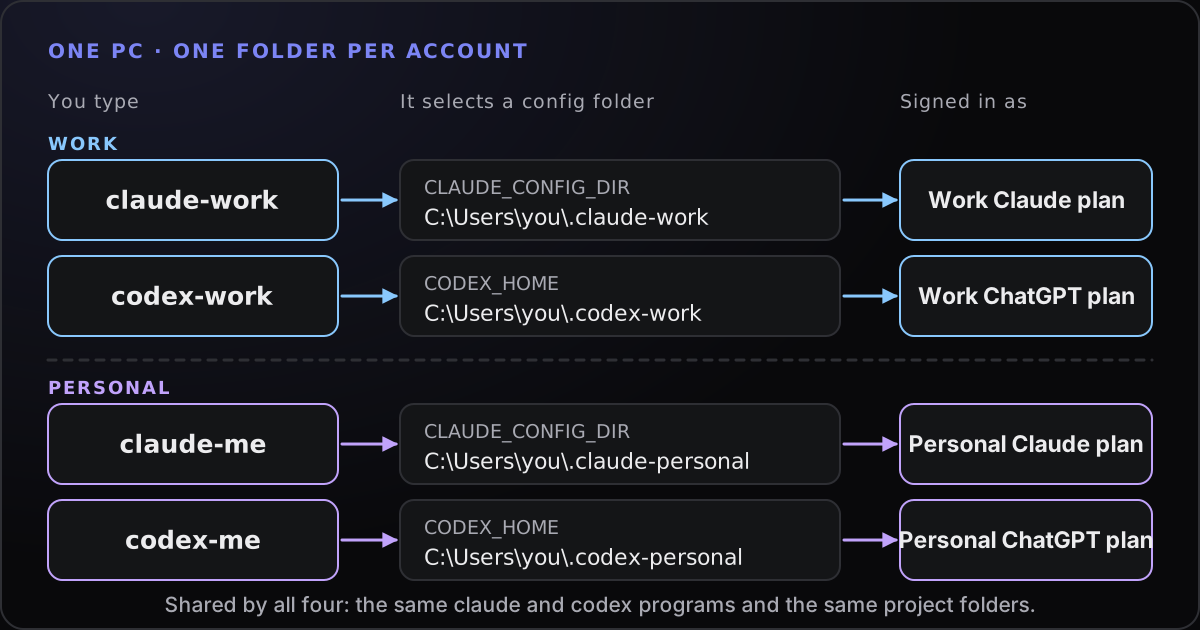
The practical answer
Set CLAUDE_CONFIG_DIR (Claude Code) or CODEX_HOME (Codex) to a different folder per account, and wrap each choice in a PowerShell function. Each folder keeps its own sign-in, settings and history. Check the active account every time, and keep every account within its provider’s terms.
Why one login per machine gets in the way
Out of the box, Claude Code keeps one signed-in account per user profile on Windows, in %USERPROFILE%\.claude. Codex does the same under %USERPROFILE%\.codex. That suits a single plan. It stops suiting you when you have a work plan and a personal one, a client account, or a Claude plan next to a ChatGPT plan for Codex.
The symptoms are familiar. You sign out and back in to switch, lose your place, and sooner or later run a personal task on the work account. History and settings from one account turn up in the other.
The fix is not a trick. Both tools let you point them at a different configuration folder, and each folder keeps its own sign-in. Anthropic’s authentication documentation describes this directly for Claude Code, under “Log in with multiple accounts”. The rest of this guide is the Windows version, with PowerShell.
Claude Code: one folder per account with CLAUDE_CONFIG_DIR
The CLAUDE_CONFIG_DIR environment variable overrides the configuration directory, which defaults to ~/.claude. Anthropic’s documentation says all settings, session history and plugins are stored under it, and that credentials move with it too. It even suggests this use: running multiple accounts side by side.
Try it once by hand before you automate anything. In a PowerShell window:
$env:CLAUDE_CONFIG_DIR = "$env:USERPROFILE\.claude-work"
claude
The first time you run Claude Code against a new directory it walks you through login and setup, as if it were a fresh install. Sign in with the work account. Close it, open a new PowerShell window without the variable, and run claude: you are back on your default account, with its own history. The variable only applies to the window where you set it.
Two cautions from the same documentation. First, write the absolute path if you ever set the variable in a settings file. Second, separate directories do not keep apart two Claude Console sign-ins that do not use an API key, because Claude Code stores that kind of sign-in outside the configuration directory. Ordinary claude.ai subscription logins and API keys are kept apart.
Codex: the same idea with CODEX_HOME
OpenAI’s documentation says Codex stores its local state under CODEX_HOME, which defaults to ~/.codex. That folder can hold config.toml, your credentials (as auth.json if you use file-based storage, or in the operating system’s credential store), history and logs.
New-Item -ItemType Directory -Force "$env:USERPROFILE\.codex-work" | Out-Null
$env:CODEX_HOME = "$env:USERPROFILE\.codex-work"
codex login
codex login status
codex login status shows the active authentication method. That is your check that the folder really holds the account you meant.
Be a little more careful here. OpenAI’s pages we read document CODEX_HOME and the login commands, but do not describe running several Codex accounts, so treat this as a sensible use of a documented variable and test it. Run codex login status in each folder. If a second sign-in seems to replace the first, check where credentials are stored: the cli_auth_credentials_store setting accepts file, keyring, auto and ephemeral, and file keeps credentials in auth.json under CODEX_HOME, so each folder holds its own.
PowerShell profile functions for each account
Setting a variable by hand each time is how you end up on the wrong account. Put the choice in a function instead. Each function sets the variable, runs the tool, and restores the previous value afterwards, so nothing leaks into your next command.
Open your PowerShell profile. Run $PROFILE to see its path; Windows PowerShell and PowerShell 7 use different profile files, so edit the one for the shell you use.
if (-not (Test-Path $PROFILE)) { New-Item -ItemType File -Force $PROFILE | Out-Null }
notepad $PROFILE
Then add one function per account:
function claude-work {
  $old = $env:CLAUDE_CONFIG_DIR
  $env:CLAUDE_CONFIG_DIR = Join-Path $env:USERPROFILE '.claude-work'
  try { claude @args } finally { $env:CLAUDE_CONFIG_DIR = $old }
}

function codex-work {
  $dir = Join-Path $env:USERPROFILE '.codex-work'
  New-Item -ItemType Directory -Force $dir | Out-Null
  $old = $env:CODEX_HOME
  $env:CODEX_HOME = $dir
  try { codex @args } finally { $env:CODEX_HOME = $old }
}
Copy each pair for your other accounts, changing the folder name: claude-personal and .claude-personal, say. Leaving plain claude and codex untouched keeps them on your default account. Open a new window and run claude-work; @args passes any flags straight through, so claude-work --continue works as you would expect.
If PowerShell refuses to load the profile with a message that running scripts is disabled, that is the execution policy. Anthropic’s troubleshooting guide suggests Set-ExecutionPolicy -ExecutionPolicy RemoteSigned -Scope CurrentUser for the same message when installing through npm; read what it changes before you apply it.
Then make the check part of the habit. Both of these report how you are signed in. Without --text, the Claude command prints JSON that includes a configDirectory field naming the folder in use (version 2.1.268 or later):
claude-work auth status --text
claude-work auth status
codex-work login status
Inside a Claude Code session, /status shows the login method and which credential is in use. Do this when you start work on a client or work repository, not after you have run a long task.
What stays separate and what is shared
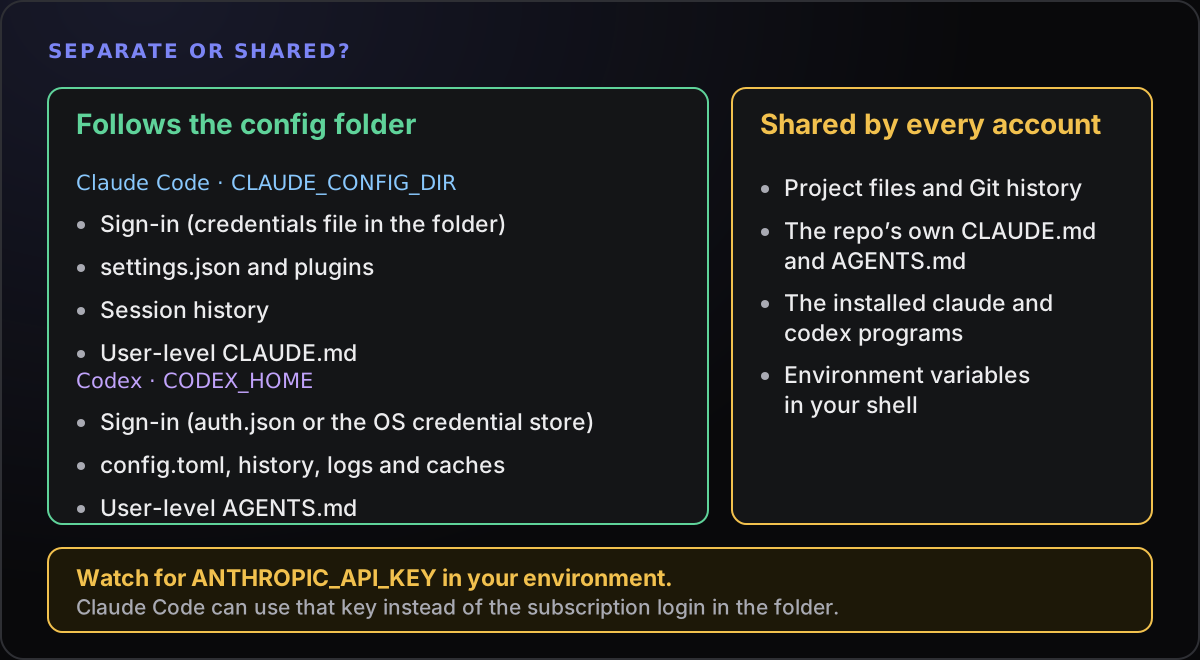
Separate. Each folder has its own sign-in, settings, plugins and session history, so claude --resume in one account will not list the other’s sessions. Your user-level instructions (CLAUDE.md for Claude Code, AGENTS.md in the Codex home folder) live in the folder too, so each account starts without the other’s personal preferences. If you want the same preferences in both, copy the file. Copying is simpler than symbolic links, which on Windows need Developer Mode or an elevated prompt.
Shared. The project itself does not care which account you use. Files, Git history and any CLAUDE.md or AGENTS.md committed in the repository are read by whichever account opens it. That is usually what you want, with one exception: if a repository belongs to one employer, open it with that employer’s account and no other.
Environment variables are the trap. A variable in your shell applies to every account. If ANTHROPIC_API_KEY is set, Claude Code can use that key instead of the subscription login in the folder, and bill API usage. If a second account keeps behaving like the first, look at the environment before you look at the folder.
Do not set CLAUDE_CONFIG_DIR or CODEX_HOME permanently at user level unless you want that account as your default everywhere. Functions keep the choice explicit. And if you use two accounts in two terminals at once, remember each terminal has its own environment.
If it still shows the wrong account
- The function did not load. Run
Get-Command claude-work. If PowerShell cannot find it, you edited a different profile file or have not opened a new window since saving. - The variable is set somewhere else. Check
$env:CLAUDE_CONFIG_DIRand$env:CODEX_HOMEin a fresh window. A value there means something (a user-level variable, an editor’s terminal settings) is forcing one folder for everything. - An API key is winning. Look for
$env:ANTHROPIC_API_KEY, then run/statusin Claude Code to see which credential is in use. - The folder is not the one you think. Print the path the function builds, and remember that a typo creates a brand-new empty folder and a fresh login prompt rather than an error.
- Codex shows the same account in both folders. Run
codex-work login statusandcodex-personal login statusand compare, then review the credential storage setting described earlier.
Limits are per account: keep to the terms
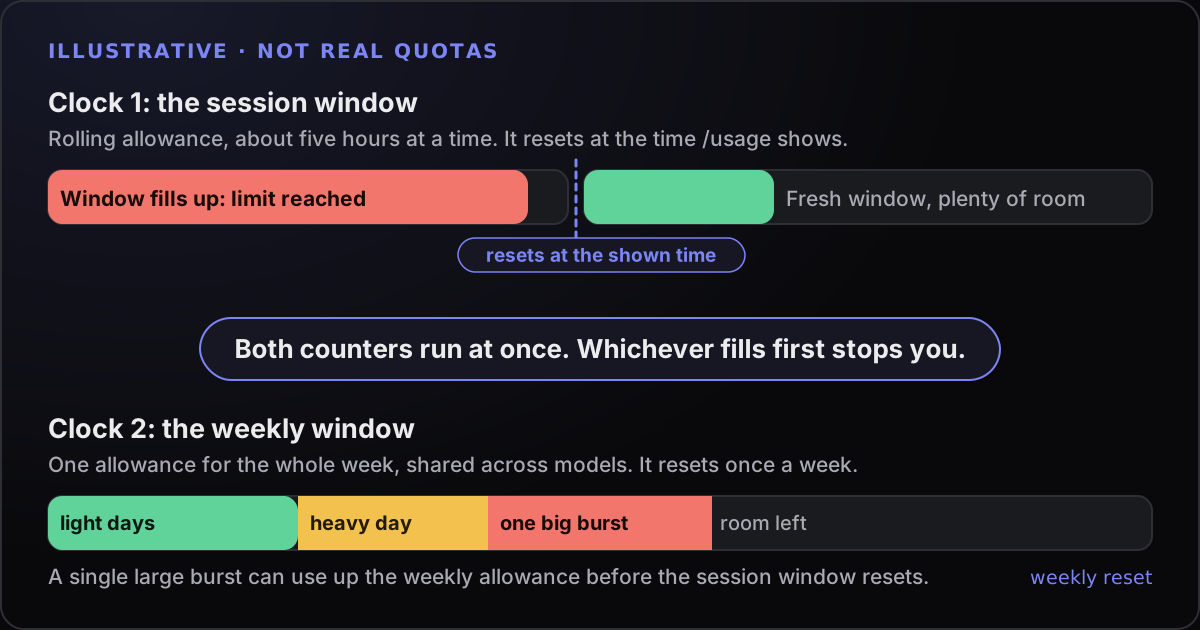
Each account has its own usage allowance. For Claude, that means its own five-hour and weekly limits, covered in how Claude Code usage limits work. Separate folders do not pool them, and they do not raise anything.
It is worth being plain about intent. Running a work account and a personal account side by side is an ordinary, documented use. Creating extra accounts to get around a limit on one account is something else. Anthropic’s consumer terms prohibit sharing account login information and bypassing its systems or protective measures, and OpenAI has its own terms for ChatGPT and Codex. We do not recommend using profiles to dodge limits, and you should read the current terms for every account you use. If you regularly need more capacity, look at the provider’s higher plans, usage credits, team plans or API billing instead.
It is also worth deciding which account a task is allowed to use before you start. Client work belongs on the client’s or your business account; do not mix repositories between employers just because it is convenient.
Where Towfu fits
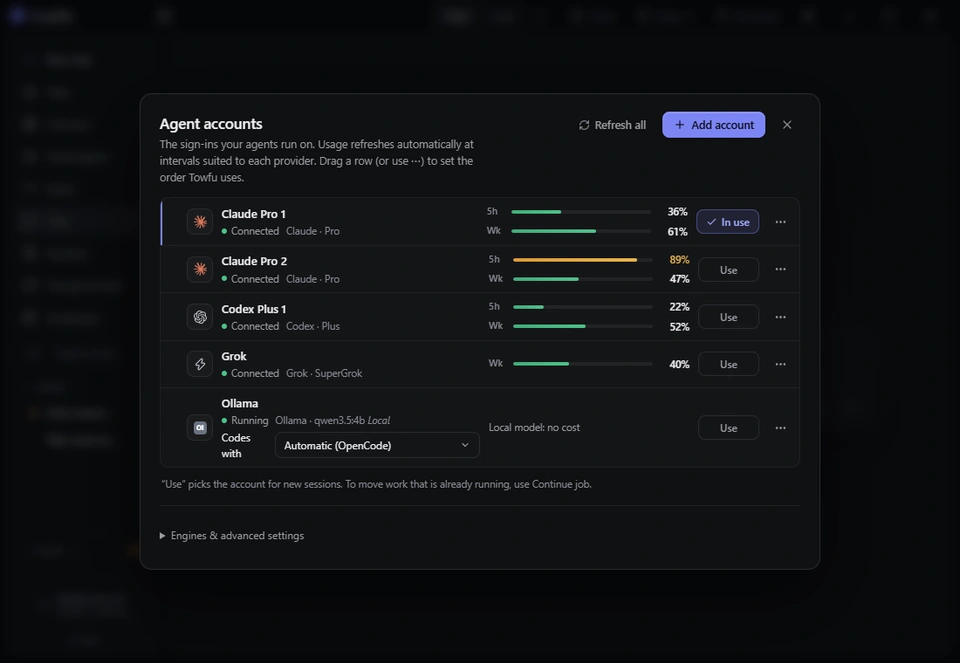
Everything above works in plain PowerShell. If you would rather not maintain functions, Towfu gives each account its own profile folder and signs it in through the official CLI, then shows each account’s 5-hour and weekly usage next to your sessions, so two accounts can run side by side in separate terminals. You still bring your own provider accounts, and Towfu does not change their limits.